

How to Connect Your Smart Lighting to Alexa and Google Home
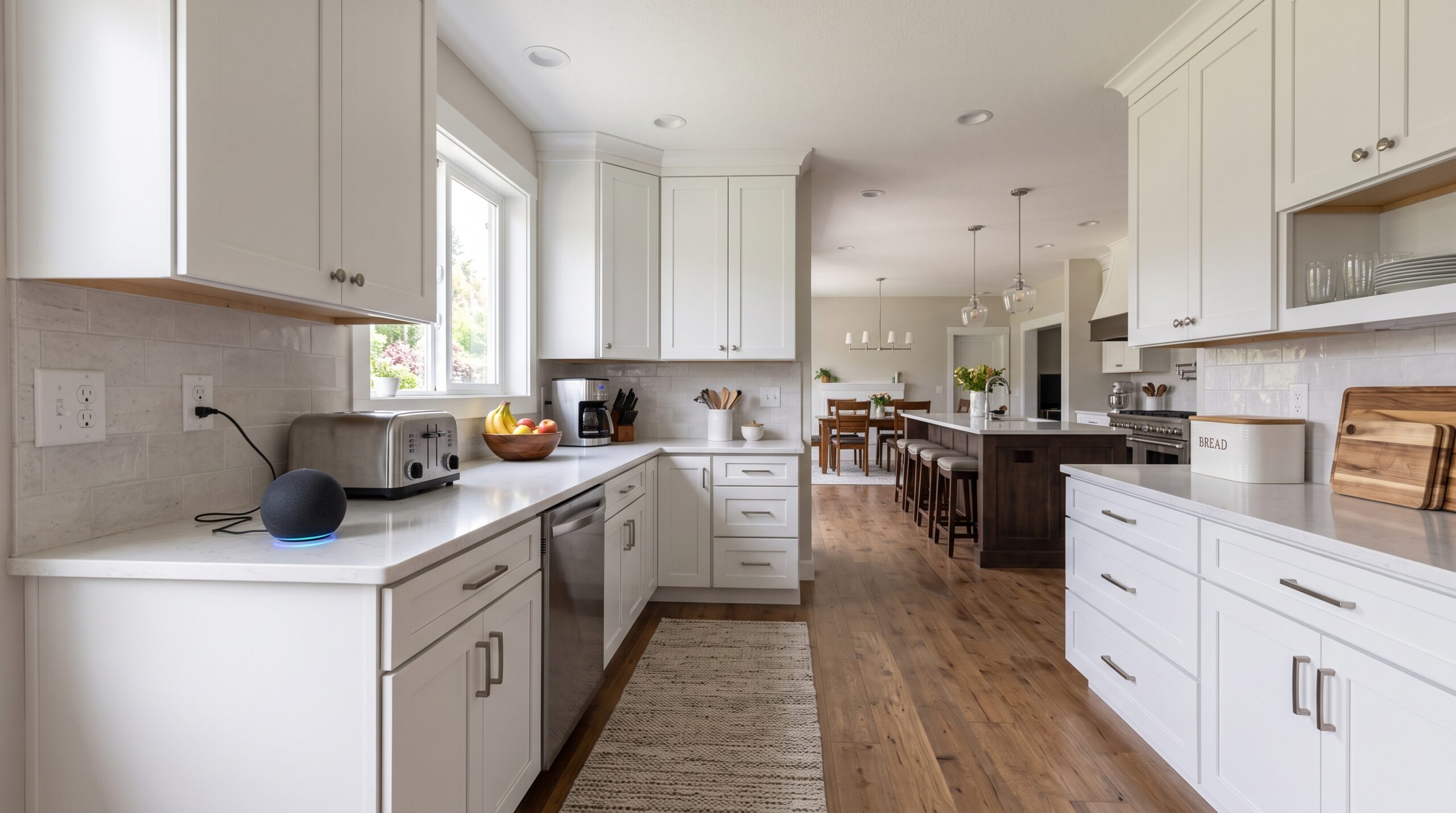
There’s a special kind of satisfaction in walking into a room with your hands full and simply saying, “turn on the kitchen lights” and watching it happen. That’s the everyday magic of voice-controlled lighting. The only thing standing between you and that moment is one detail: smart lighting compatibility.
Get it right, and your lights answer to your voice from day one. Get it wrong, and you’re stuck toggling between apps that don’t talk to each other. Here’s how to make sure your connected lighting works seamlessly with the smart home assistants you already use.
Connect to Amazon Alexa
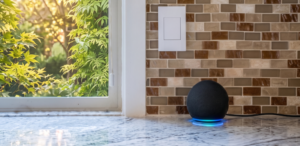
Alexa is the easiest place to start, and it’s the most widely supported assistant for connected lighting.
Before you begin…
- Add your switches to the Deako app.
- Connect your switches to WiFi.
- Google Home uses WiFi to control your switches.
Instructions
- Open the Alexa App. Tap more in the bottom right corner, then select Alexa+ store.
- Search the Alexa store for ‘Deako’, then select the Deako skill.
- Select ‘Enable to use’. You will be redirected to a page to log in to your Deako app account.
- Sign into your Deako account.
- Select home profile. If you are a user on only one Deako home, only one will be listed. If you are a user on multiple Deako homes, such as if you own multiple homes with Deako, select the 1 you want to connect. You can only connect 1 Amazon Alexa profile to 1 Deako profile.
Connect to Google Home
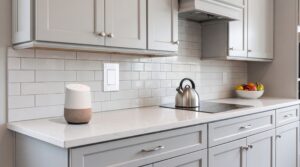
Google Assistant is great at understanding everyday phrasing, so commands feel natural. Between the two, Alexa and Google Assistant compatibility covers most smart home households.
Before you begin…
- Add your switches to the Deako app.
- Connect your switches to WiFi.
- Google Home uses WiFi to control your switches.
Instructions
- Open the Google Home App: On the Home page, tap plus to open a menu.
- Link app or service: Select ‘Link app or service’ from the menu.
- Select ‘Works with Google’.
- Search for ‘Deako’, select the ‘Deako’ option, and continue to account linking.
- You will be redirected to a page to log in to your Deako app account.
- Sign into your Deako account: Sign in as you normally would. Either sign in with Apple, Google, or with an email and password.
- Select home profile: Select the Deako app home profile that you would like to link Google Home to.
If something won’t connect
- Light won’t show up? Double-check that your phone is on 2.4 GHz Wi-Fi.
- Voice command not working? Revisit the light name and room assignment — that’s how your assistant finds it.
- Slow or dropped commands? Reboot your hub and switch, then check for updates in the Deako app.
Bring your whole home to life
Connecting your lights to a home assistant turns a house full of switches into a home that responds to you — dimming for movie night, lighting the hallway before you reach it, switching everything off after the families asleep. Match your lighting to the assistant you already use and enjoy home automation that finally feels effortless.
Ready to make the switch? Explore Deako’s smart lighting and see how simple a connected home can be.